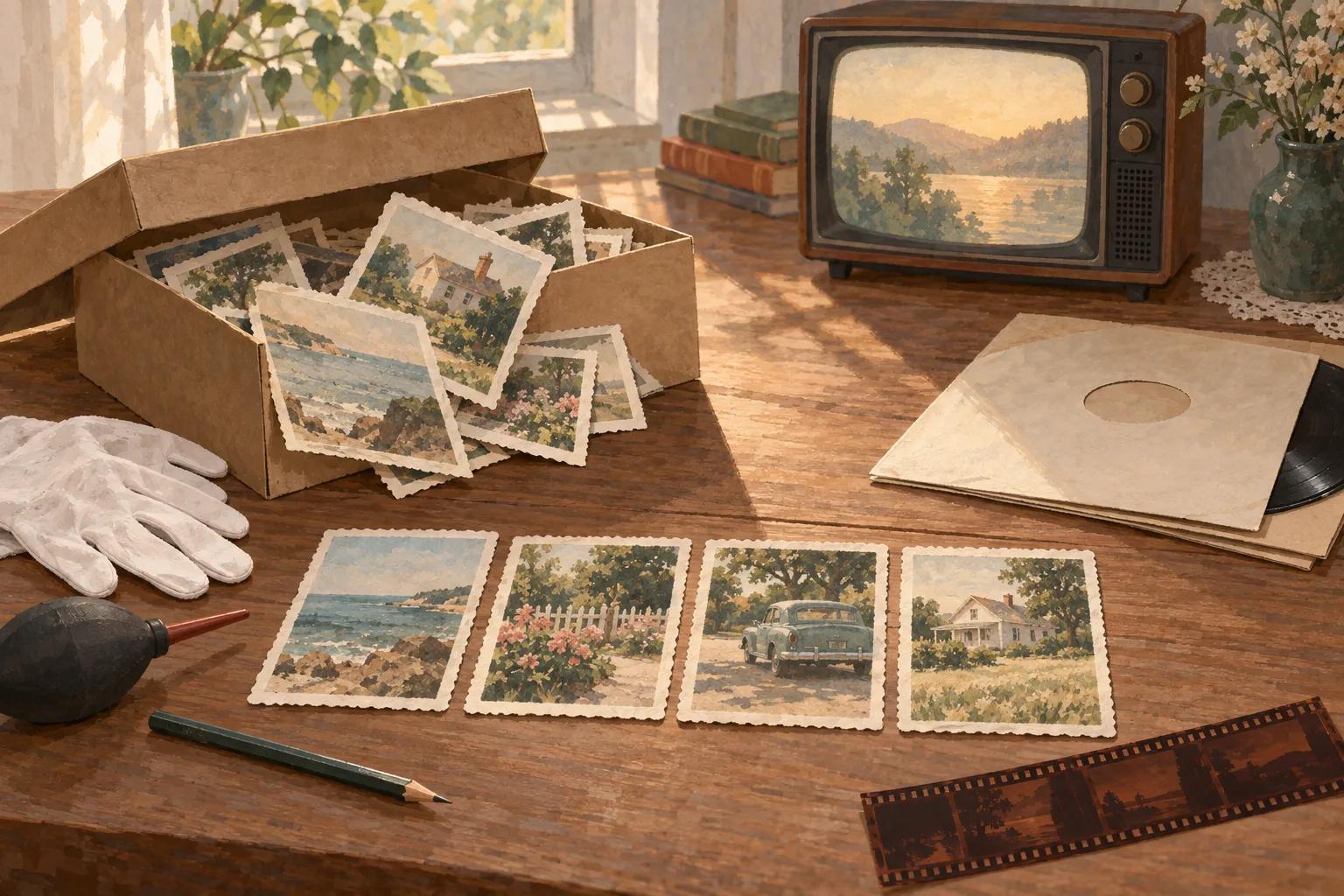
To turn old photos into a video gift someone will want to watch again, choose fewer photos than you have and scan them well enough for a TV. Put them in an order that tells a story, set them to one song that means something to the person, and keep the whole film about as long as that song. If the occasion is a birthday and six photos can carry the story, yume's The Museum of Us makes the finished film for you, with your photos shown exactly as they are. For any other occasion, or when the story needs dozens of photos, a slideshow you make yourself is the better gift.
| Your situation | Best route | Why |
|---|---|---|
| A birthday, and six photos can tell the story | yume's The Museum of Us | A finished film of just under a minute with your photos unaltered and a song composed just for your film, ready in about 15 minutes |
| An anniversary, memorial, reunion or retirement | A slideshow you make yourself | yume's photo film always closes with "Happy birthday" |
| Thirty or more photos, or a loop for a party | A slideshow you make yourself | You control the count and the running time |
| You want your own voice telling the stories | A slideshow you make yourself, with narration | Your voice is part of the gift |
| No budget, and the photos are already on your phone | Your phone's photo app | The Photos app on iPhone makes memory movies from your photos |
Should you make a photo video gift yourself or have it made?
Make a photo video gift yourself when you need more than a handful of photos, want to narrate it in your own voice, need it for an occasion other than a birthday, or want it free. Have it made when it is a birthday, a few well-chosen photos tell the story, and you want a finished film without learning to edit. The choice also sets your homework: a made film may need only six photos, while a slideshow of one song needs thirty or more.
For a birthday, yume's The Museum of Us turns six of your photos into a finished film without any editing on your part. The six photos hang in their own frames in a private museum, in the order you choose, with nothing cropped and no faces altered, while a song composed just for your film plays and builds. Old family photos suit it well: yume suggests hanging an old family photo next to one from last summer, and the photos can be portrait or landscape, with or without faces. Faded color and black-and-white prints hang just as they are. The film ends with a newly made scene of you, created from 1 to 4 clear photos of you, raising a glass to the birthday person on a terrace under golden fireworks, followed by "Happy birthday", their name, a message of your choice and your name. It runs just under a minute, is in English, costs €19, includes one free edit and usually arrives by email about 15 minutes after you submit the details.
Those details decide whether it fits. The film is for birthdays only, takes exactly six photos and is in English. One person, the giver, appears in the closing toast, so a gift from a whole family still shows one face on the terrace. The toast is a newly made scene, while the six photos in the gallery are your real ones. To see the treatment before you choose your six, watch the example films on The Museum of Us page: landscape photos sit whole inside square ivory mats under brass picture lights. The examples were made for fictional people with recent photos. yume's other birthday films use clear, recent photos to put the person into new scenes, so they are not the way to show old prints.
A slideshow you make yourself is the better choice for every other case. On iPhone, the Photos app groups photos into memories you can play and personalize as a memory movie, and a video editor gives you full control over order, timing and narration. For a retirement, our guide to retirement videos compares a photo montage with colleague messages and a career film. The rest of this guide covers the work either route needs: choosing, scanning and ordering the photos, then music, length and presenting.
Which old photos should you put in a video gift?
Choose old photos that each carry a story someone could tell out loud. Show the person at different ages and with the people who matter to them, and include a few of the big occasions in their life. Leave out near-duplicates, blurry frames and group photos where nobody can name half the faces. Cutting a weak photo gives the strong ones more time on screen.
Research on nostalgia points to the same choices. In seven studies, Wildschut and colleagues (2006) found that people's nostalgic memories typically featured themselves with close others, such as friends, or at momentous events, such as weddings. Calling up those memories strengthened participants' sense of social connection and lifted their mood and self-regard. The participants recalled and wrote about memories rather than watching photo videos, so use the finding to guide which photos you choose; it does not show how a video will land.
Collect before you choose. Ask siblings, cousins and old friends for photos you have never seen, and ask the oldest relatives who is in the unlabeled ones. Read the backs of the prints, where dates and names were often written, and note them down before you forget. Decide early whether photos of people who have died belong in the film. In a memorial they are the point, while in a birthday film one or two warm photos are usually enough.
For The Museum of Us, the selection is six photos. Spread them across the years, for example a childhood photo, a young-adult photo, a wedding or big trip, a family photo, a recent photo and one of the two of you. For a retirement montage, our retirement photo guide covers choosing a small, coherent set.
How do you scan old photos for a video?
Scan old photos for a video on a flatbed scanner at 600 dpi for small prints and anything you plan to zoom into, and at no less than 300 dpi for standard prints you will show whole. A phone app is fine when it deals with glare. Before you start, clean the scanner glass, handle each print by its edges and keep the originals somewhere safe.
What resolution should you scan old photos at for a TV?
Scan old photos at 300 dpi for standard 6 by 4 inch prints shown whole, and at 600 dpi for smaller prints, for photos you want to zoom into, and for a 4K TV. The Library of Congress scanning guide sets 300 dpi as the general standard and 400 to 600 dpi for photographs you intend to enlarge, adding that anything above 600 may be unnecessary. A TV is an enlargement, so the screen sizes decide which end of that range you need.
| Scan resolution | Pixels | What it covers | |
|---|---|---|---|
| 6 by 4 inch | 300 dpi | 1800 by 1200 | Showing the whole print on a Full HD (1920 by 1080) screen |
| 6 by 4 inch | 600 dpi | 3600 by 2400 | A 2x zoom on Full HD, or filling a 4K screen's height |
| Wallet size, 2.5 by 3.5 inch | 300 dpi | 750 by 1050 | Barely fills a Full HD screen's height; any zoom looks soft |
| Wallet size, 2.5 by 3.5 inch | 600 dpi | 1500 by 2100 | Showing it whole with room for a gentle zoom |
The figures in that table are our own calculation: print inches multiplied by dots per inch. A zoom that fills a 1920-pixel-wide screen with half of a 6-inch print needs 1920 ÷ 3 = 640 pixels per inch, so 600 dpi comes close. Filling a 4K screen's 2160-pixel height with a 4-inch print needs 540 pixels per inch, which 600 dpi covers. When in doubt, scan at 600 dpi: you can always make a smaller copy, but you cannot add detail later.
Can you scan old photos with your phone?
You can scan old photos with your phone well enough for a video, because resolution is rarely the problem. As our own calculation, a 12-megapixel camera (4000 by 3000 pixels) whose frame is filled by a 6 by 4 inch print captures roughly 650 pixels per inch, more than the 300 dpi standard. What spoils phone scans is glare on glossy prints, a tilted angle and uneven light.
Google's free PhotoScan app was built for those problems. It has you photograph a print from several slightly different angles, then combines the shots to remove glare, and it corrects perspective and crops automatically. Whatever app you use, lay the print flat on a dark surface in soft daylight, keep the phone parallel to it, and turn off the flash.
How do you handle fragile old prints and albums while scanning?
Handle fragile prints with clean hands or clean nitrile gloves, holding them by the edges. The Library of Congress care guidance advises against tape, paper clips and rubber bands. If you need to label a print, it suggests writing on the back near the edge with a soft pencil, and only when necessary. For dust, it recommends an air bulb rather than canned air, because even soft brushes can scratch.
Photos stuck in old self-adhesive "magnetic" albums need extra care. The Library of Congress preservation FAQ calls cutting around each photo while it is still attached to the page the safest do-it-yourself method. Where the adhesive has dried out, you can slide a thin card behind the photo to free it. If a print will not come loose, scan it on the page.
Name each scan by date, such as 19740612-wedding.jpg, so the files sort in order, and keep at least two copies in different places, as the scanning guide recommends. Save a high-quality JPEG copy of each scan for the video; The Museum of Us accepts photos up to 20 MB each.
Should you restore or colorize old photos before putting them in a video?
Fix what distracts in an old photo before it goes into a video: scanner edges, a tilt, dust spots and faded contrast. Treat heavy restoration or colorization as a separate version and compare it with the original scan before you use it. Automatic tools can change a face in small ways, and the person watching may notice that their mother's smile looks different.
Make every change on a copy and keep the untouched scan next to it. Black-and-white photos usually look best left in black and white. The Library of Congress scanning guide recommends grayscale for them, and their tones help mark the early chapters of a life on screen. If a colorized version is part of the gift, show it beside the original rather than instead of it. The Museum of Us hangs photos exactly as you upload them, so make any fixes before you choose your six.
How do you put old photos in an order that tells a story?
Put old photos in three chapters: the person before you knew them, the life you share, and where things are now. Within that frame, open on a photo that gets an immediate reaction, such as a haircut or a car everyone remembers. Close on the most recent photo or one with you in it. A strict date order works as a backbone, but chapters give it a shape.
Then-and-now pairs make the turns between chapters land. A childhood photo of the person on a beach followed by the same person on a beach decades later says more than either photo alone. Our explainer on the three-act structure covers the storytelling pattern behind this arrangement.
Illustrative example: for a grandmother's 80th birthday, the first chapter might hold her school photo, her parents' house and her wedding. The second could be her children growing up, a few holidays and the grandchildren arriving. The third might show her garden this summer, a recent family photo and finally a photo of her with the grandchild giving the gift.
How long should a photo video gift be?
Make a photo video gift about as long as one song, usually three to four minutes, so it is easy to watch again. The song then sets your photo count: divide its length in seconds by the time each photo stays on screen. Four to seven seconds per photo is a good starting point, giving longer to group photos and photos with a story, and less to a quick laugh.
| Song length | At 5 seconds per photo | At 7 seconds per photo |
|---|---|---|
| 3 minutes (180 seconds) | 36 photos | About 26 photos |
| 3.5 minutes (210 seconds) | 42 photos | 30 photos |
| 4 minutes (240 seconds) | 48 photos | About 34 photos |
These counts are a simple calculation, and the seconds per photo is an editorial starting point rather than a measured rule. A slideshow that loops on a TV at a party is a different object: it can run as long as you have photos and can play quietly in the background, because nobody needs to sit through it from start to finish.
Should old photos pan and zoom in a slideshow video?
Move an old photo in a slideshow only when the move ends somewhere that matters, such as a face or a detail the song or caption is about, and hold the other photos still. Some editors, including iMovie, apply a slow pan or zoom to every photo by default, and an automatic move can drift toward empty space. Our explainer on the Ken Burns effect covers how to set the start and end of each move and why automatic moves fail.
Zooms need detail. A slow push into a face on a small print shows every missing pixel, so scan any photo you plan to zoom into at 600 dpi.
What music should you use for a photo video gift?
Use one song tied to the person in the photos, such as the song from their wedding or the record that played in the house when they were young. For a private gift you play at home, the choice is about meaning. If you plan to post the video publicly, use music you are allowed to publish, because platforms such as YouTube check uploads for copyrighted music.
On YouTube, a Content ID claim can block a video, run ads on it for the rights holder, or track its views. Tracks from the YouTube Audio Library are free to use in YouTube videos and are not claimed through Content ID, though some need a credit in the description.
Words help old photos too. Short captions with a name and a year make photos understandable to grandchildren who never met half the people in them. A single spoken line at the start, recorded on your phone, tells the person who made the film and why.
How do you give a photo video gift so it gets rewatched?
Give a photo video gift by watching it together on the biggest screen in the room, with a few of the original prints nearby to pass around afterward. Then send a link the person can open again, on their own and with other family members. The link is what turns a single screening into something they come back to.
A video is usually too large to attach to an email. Gmail limits attachments to 25 MB and turns larger files into a Google Drive link. As a calculation, a three-minute Full HD video at 8 megabits per second comes to about 180 MB. Upload the file to a shared folder or a private video link, and keep your own copy with the scans.
A yume film comes with that sharing built in. The finished film arrives by email with its own watch link, which anyone you send it to can open and download without an account, and which is not listed publicly. It is sent to you, not the birthday person, so you choose the moment. To decide whether a birthday film suits your photos, watch the examples on The Museum of Us page before you pick your six.